The Anchorage
Personal website of Gregory K. Maxey, Commander USN (Retired)
The Anchorage
Personal website of Gregory K. Maxey, Commander USN (Retired)
The information, illustrations and code contained in my "Microsoft Word Tips" are provided free and without risk or obligation.

However, the work is mine. If you use it for commercial purposes or benefit from my efforts through income earned or time saved then a donation, however small, will help to ensure the continued availability of this resource.
If you would like to donate, please use the appropriate donate button to access PayPal. Thank you!



The purpose of this Microsoft Word Tips & Microsoft Word Help page is to describe and illustrate a functional and complete method to ensure that desired custom Office ribbon tabs and/or controls are hidden (tabs) or hidden/disabled (controls) under conditions when no document is open.
Unlike built-in controls, custom controls do not automatically respond to document conditions that would render them inoperable. Under these conditions, should the the application attempt to use a custom control errors or unexpected results could occur.
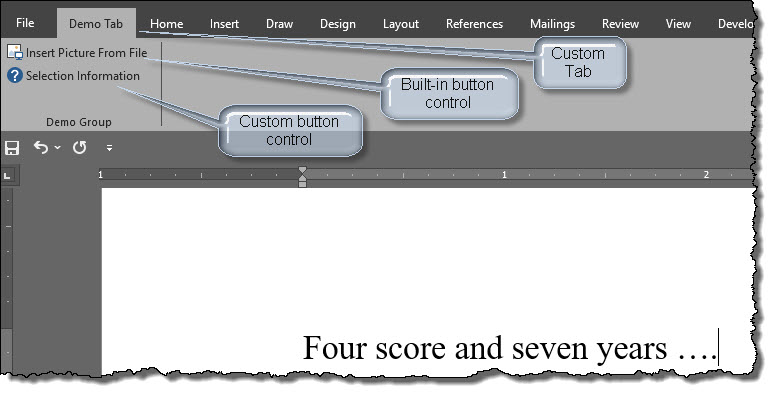
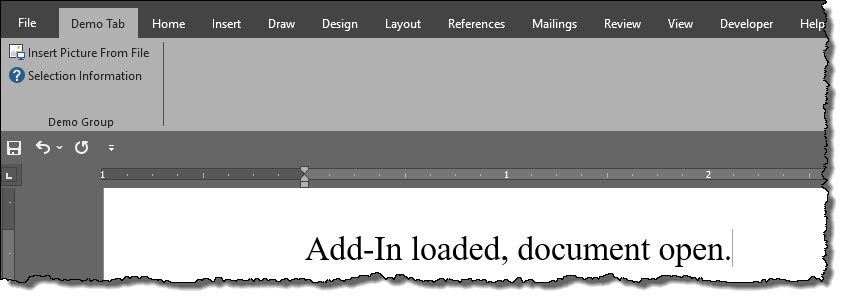
I will use a basic custom ribbon tab to illustrate. The custom ribbon tab shown below contains a single group with a single built-in ribbon button control and a single custom ribbon button control. With one or more documents open, the customized ribbon is developed and displayed when the template containing the custom RibbonX and VBA callbacks is loaded as a Global Template Add-In or opened in Word. Each of the controls are both visible and enabled. Each control will perform its intended purpose when used.
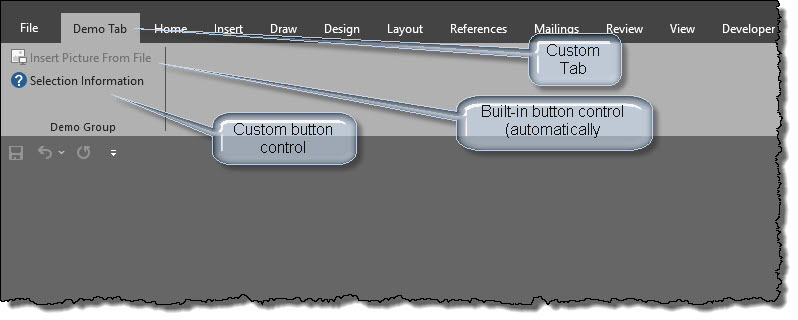
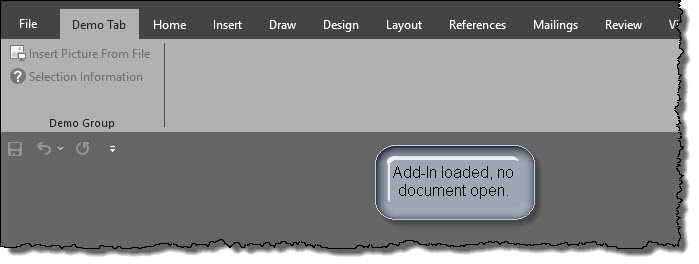
The following illustration shows the same custom ribbon tab when all documents are closed. As you can see, the built-in button control has automatically adjusted its enabled state to reflect the document conditions. The custom button control however, is still enabled.
Of course this is not a high crime or even a misdemeanor. However, as a template developer, you should make every attempt to design your custom interface to perform as the end user would expect. In this case, there is "no" selection so it is impossible to obtain Selection Information as intended.
The following represents the RibbonX and VBA Callback for the example used above:
<customUI xmlns="http://schemas.microsoft.com/office/2009/07/customui">
<ribbon>
  <tabs>
    <tab id="custTabShowHide" label="Demo Tab" insertBeforeMso= "TabHome">
      <group id="custDocs" label="Demo Group">
        <button idMso="PictureInsertFromFile" label="Insert Picture From File"></button>
        <button id="custBtn1" imageMso="About" label="Selection Information" onAction="modDemoRibCon.ButtonOnAction"></button>
      </group>
    </tab>
   </tabs>
</ribbon>
</customUI>
Option Explicit
Sub ButtonOnAction(control As IRibbonControl)
  Select Case control.ID
    Case "custBtn1"
       MsgBox "Lines - " & Selection.Range.ComputeStatistics(wdStatisticLines) & vbCr _
         & "Words - " & Selection.Range.ComputeStatistics(wdStatisticWords) & vbCr _
         & "Characters - " & Selection.Range.ComputeStatistics(wdStatisticCharacters), ,"SELECTION INFORMATION"
  End Select
lbl_Exit:
  Exit Sub
End Sub
If you are familiar with VBA, you should recognize this is an error waiting to happen. If your user executes the Selection Information button with no document open, he or she will be immediately presented with:
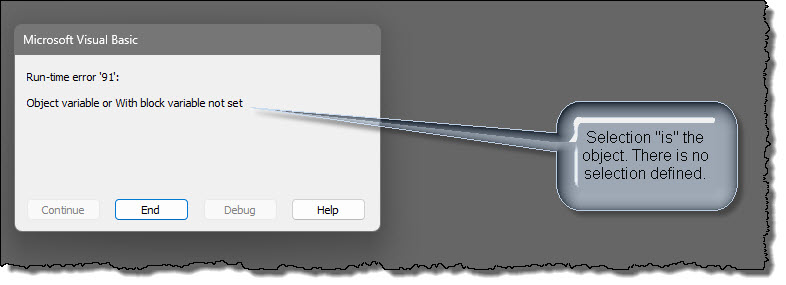
Obviously undesirable and not the goal in designing a user interface. A shortcut or easy work around is to simply change the VBA Callback to accommodate the condition.
Option Explicit
Sub ButtonOnAction(control As IRibbonControl)
  Select Case control.ID
    Case "custBtn1"
      If Documents.Count > 0 Then
        MsgBox "Lines - " & Selection.Range.ComputeStatistics(wdStatisticLines) & vbCr _
           & "Words - " & Selection.Range.ComputeStatistics(wdStatisticWords) & vbCr _
           & "Characters - " & Selection.Range.ComputeStatistics(wdStatisticCharacters), , "SELECTION INFORMATION"
      Else
        MsgBox "There is no document open with selected text to evaluate.", vbOKOnly, "NOTHING SELECTED"
      End If
  End Select
lbl_Exit:
  Exit Sub
End Sub
That simple change will prevent the error described above, but the goal here is not to learn short cuts or take the easy road. The goal is to design a transparent user interface that behaves as the end user would expect in every case.
Both controls in this basic example can only function as intended when there is an open active document. There are two ways to properly accommodate this condition:
For each case, requires an "onload" event in the RibbonX definition that triggers when the Global Template Add-In is loaded (or the template file opened in Word) and a class module defining an application monitor in the VB Project. The onload event will initiate the class monitor and the class application monitor will detect document changes and provide the document count for determining the desired display of the ribbon controls.
 Any time a template project involves a dynamic user interface, it is best to set
the ribbon object to an object variable in the VB project and store the memory
location of the ribbon object. This way the ribbon object can be recreated with
code if required. The procedures shown below illustrate.
Any time a template project involves a dynamic user interface, it is best to set
the ribbon object to an object variable in the VB project and store the memory
location of the ribbon object. This way the ribbon object can be recreated with
code if required. The procedures shown below illustrate.
As both controls in the basic example should be disabled when no document is open, there is no reason for either to be displayed or for the ribbon tab to be visible. For this method include a getVisible VBA callback attribute defined in the RibbonX for the custom tab definition and a GetVisible procedure in the VBA project. The RibbonX, revised modDemoRibCon containing the Onload and GetVisible procedures and class module code is as follows:
<customUI xmlns="http://schemas.microsoft.com/office/2009/07/customui" onLoad="modDemoRibCon.OnLoad">
<ribbon>
  <tabs>
    <tab id="custTabShowHide" label="Demo Tab" getVisible="modDemoRibCon.GetVisible" insertBeforeMso= "TabHome">
      <group id="custDocs" label="Demo Group">
        <button idMso="PictureInsertFromFile" label="Insert Picture From File"></button>
        <button id="custBtn1" imageMso="About" label="Selection Information" onAction="modDemoRibCon.ButtonOnAction"></button>
      </group>
    </tab>
  </tabs>
</ribbon>
</customUI>
Option Explicit
Public p_oRibbon As IRibbonUI
Public p_bHideDisable As Boolean
Private m_ThisApp As clsThisApp
Sub Onload(ribbon As IRibbonUI)
  'Initailize the public ribbon object.
  Set p_oRibbon = ribbon
  'Store the ribbon object memory location.
  SaveSetting "Show Hide Ribbon Controls", "Config", "RibbonPointer", ObjPtr(p_oRibbon)
  DoEvents
  'Initialize the Application Event handler.
  Set m_ThisApp = New clsThisApp
lbl_Exit:
  Exit Sub
End Sub
Sub ButtonOnAction(control As IRibbonControl)
  Select Case control.ID
    Case "custBtn1"
      MsgBox "Lines - " & Selection.Range.ComputeStatistics(wdStatisticLines) & vbCr _
        & "Words - " & Selection.Range.ComputeStatistics(wdStatisticWords) & vbCr _
        & "Characters - " & Selection.Range.ComputeStatistics(wdStatisticCharacters), , "SELECTION INFORMATION"
  End Select
lbl_Exit:
  Exit Sub
End Sub
Sub GetVisible(control As IRibbonControl, ByRef returnedVal)
  Select Case control.ID
    Case "custTabShowHide"
      returnedVal = True
      If p_bHideDisable Then returnedVal = False
  End Select
lbl_Exit:
  Exit Sub
End Sub
Option Explicit
Private WithEvents m_oThisApp As Application
'The following API is used to retrieve the ribbon object from memory.
#If VBA7 Then
  Private Declare PtrSafe Sub CopyMemory Lib "kernel32" Alias "RtlMoveMemory" (ByRef destination As Any, ByRef source As Any, ByVal length As Long)
#Else
  Private Declare Sub CopyMemory Lib "kernel32" Alias "RtlMoveMemory" (ByRef destination As Any, ByRef source As Any, ByVal length As Long)
#End If
Private Sub Class_Initialize()
  Set m_oThisApp = Word.Application
  p_bHideDisable = False
  If Documents.Count = 0 Then p_bHideDisable = True
lbl_Exit:
  Exit Sub
End Sub
'The following function is used to recreate the the p_oRibbon object variable as required.
#If VBA7 Then
  Function GetRibbon(ByVal lRibbonPointer As LongPtr) As Object
#Else
  Function GetRibbon(ByVal lRibbonPointer As Long) As Object
#End If
  Dim objRibbon As Object
  CopyMemory objRibbon, lRibbonPointer, LenB(lRibbonPointer)
  Set GetRibbon = objRibbon
  Set objRibbon = Nothing
lbl_Exit:
  Exit Function
End Function
Private Sub m_oThisApp_DocumentChange()
  'This event fires _
    a. Each time a new document is created _
    b. Each time an existing document is opened _
    c. Each time user switches between open documents _
    d. When this Global Template loads if no documents are opened _
    e. When the open document is closed when this Global Template is loaded
  'The following Beep statement is provided as a cue of this event firing. You can leave as it or remove it per your preferences.
  Beep
  p_bHideDisable = False
  If Documents.Count = 0 Then p_bHideDisable = True
  RefreshDisplay
lbl_Exit:
  Exit Sub
End Sub
Private Sub RefreshDisplay()
  If p_oRibbon Is Nothing Then
    Set p_oRibbon = GetRibbon(GetSetting("Show Hide Ribbon Controls", "Config", "RibbonPointer"))
    DoEvents
  End If
  'Refresh specific control. In this case, the Custom Ribbon Tab.
  p_oRibbon.InvalidateControl ("custTabShowHide")
  'If you have a more complex RibbonX definition, you can force a refresh of the entire ribbon with ...
  'p_oRibbon.Invalidate
lbl_Exit:
  Exit Sub
End Sub
With these changes, the user interface displays as follows:
This method is very similar to the method discussed before. Here a getEnabled VBA callback attribute is defined in the RibbonX for the custom button definition and a GetEnabled procedure is included in the VBA project. The p_oRibbon.Invalidate Control statement in the class module procedure is changed as appropriate. See below.
<customUI xmlns="http://schemas.microsoft.com/office/2009/07/customui" onLoad="modDemoRibCon.OnLoad">
  <ribbon>
    <tabs>
      <tab id="custTabShowHide" label="Demo Tab" insertBeforeMso= "TabHome">
        <group id="custDocs" label="Demo Group">
           <button idMso="PictureInsertFromFile" label="Insert Picture From File"></button>
           <button id="custBtn1" imageMso="About" label="Selection Information" getEnabled="modDemoRibCon.GetEnabled" onAction="modDemoRibCon.ButtonOnAction"></button>
        </group>
      </tab>
    </tabs>
  </ribbon>
</customUI>
Option Explicit
Public p_oRibbon As IRibbonUI
Public p_bHideDisable As Boolean
Private m_ThisApp As clsThisApp
Sub Onload(ribbon As IRibbonUI)
  'Initailize the public ribbon object.
  Set p_oRibbon = ribbon
  'Store the ribbon object memory location.
  SaveSetting "Show Hide Ribbon Controls", "Config", "RibbonPointer", ObjPtr(p_oRibbon)
  DoEvents
  'Initialize the Application Event handler.
  Set m_ThisApp = New clsThisApp
lbl_Exit:
  Exit Sub
End Sub
Sub ButtonOnAction(control As IRibbonControl)
  Select Case control.ID
    Case "custBtn1"
      MsgBox "Lines - " & Selection.Range.ComputeStatistics(wdStatisticLines) & vbCr _
        & "Words - " & Selection.Range.ComputeStatistics(wdStatisticWords) & vbCr _
        & "Characters - " & Selection.Range.ComputeStatistics(wdStatisticCharacters), , "SELECTION INFORMATION"
  End Select
lbl_Exit:
  Exit Sub
End Sub
Sub GetEnabled(control As IRibbonControl, returnedVal)
  Select Case control.ID
    Case "custBtn1"
      returnedVal = True
      If p_bHideDisable Then returnedVal = False
  End Select
lbl_Exit:
  Exit Sub
End Sub
Option Explicit
Private WithEvents m_oThisApp As Application
'The following API is used to retrieve the ribbon object from memory.
#If VBA7 Then
  Private Declare PtrSafe Sub CopyMemory Lib "kernel32" Alias "RtlMoveMemory" (ByRef destination As Any, ByRef source As Any, ByVal length As Long)
#Else
  Private Declare Sub CopyMemory Lib "kernel32" Alias "RtlMoveMemory" (ByRef destination As Any, ByRef source As Any, ByVal length As Long)
#End If
Private Sub Class_Initialize()
  Set m_oThisApp = Word.Application
  p_bHideDisable = False
  If Documents.Count = 0 Then p_bHideDisable = True
lbl_Exit:
  Exit Sub
End Sub
'The following function is used to recreate the the p_oRibbon object variable as required.
#If VBA7 Then
  Function GetRibbon(ByVal lRibbonPointer As LongPtr) As Object
#Else
  Function GetRibbon(ByVal lRibbonPointer As Long) As Object
#End If
  Dim objRibbon As Object
  CopyMemory objRibbon, lRibbonPointer, LenB(lRibbonPointer)
  Set GetRibbon = objRibbon
  Set objRibbon = Nothing
lbl_Exit:
  Exit Function
End Function
Private Sub m_oThisApp_DocumentChange()
  'This event fires _
    a. Each time a new document is created _
    b. Each time an existing document is opened _
    c. Each time user switches between open documents _
    d. When this Global Template loads if no documents are opened _
    e. When the open document is closed when this Global Template is loaded
  'The following Beep statement is provided as a cue of this event firing. You can leave as it or remove it per your preferences.
  Beep
  p_bHideDisable = False
  If Documents.Count = 0 Then p_bHideDisable = True
  RefreshDisplay
lbl_Exit:
  Exit Sub
End Sub
Private Sub RefreshDisplay()
  If p_oRibbon Is Nothing Then
    Set p_oRibbon = GetRibbon(GetSetting("Show Hide Ribbon Controls", "Config", "RibbonPointer"))
    DoEvents
  End If
  'Refresh specific control. In this case, the Custom Ribbon Tab.
  p_oRibbon.InvalidateControl ("custBtn1")
  'If you have a more complex RibbonX definition, you can force a refresh of the entire ribbon with ...
  'p_oRibbon.Invalidate
lbl_Exit:
  Exit Sub
End Sub
With these changes, the user interface displays as follows:
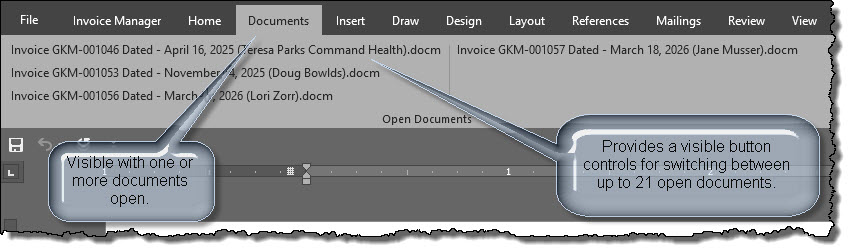
I have included in the download package for this tips page another practical example of global template add-in (with RibbonX and code) that uses the methods described here to display a visible custom button control for each open document (up to 21) on a custom ribbon tab named Documents. A getLabel callback is used to name the button with the document name and a getScreentip callback is used to display the document path. When a button is clicked it sets the named document as the active document.
When all documents are closed the custom tab is then hidden.
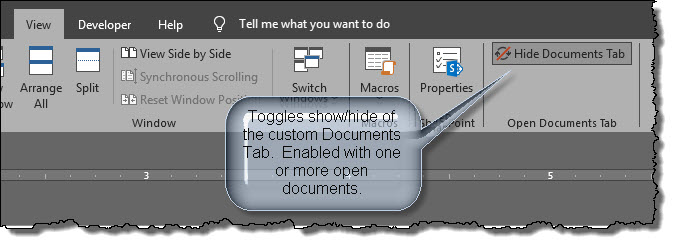
When one or more documents are open, a custom toggle button is enabled to allow the user to show or hide the Documents tab.
The four templates used to develop this tips page are available for
download here:
Project Files
A special thanks to Andrews Lockton and Charles Kenyon for
their review and contributions to the contents of this page.
For more on template add-ins and how to load them, see: Organizing Your Macros/Template Add-ins at: Installing Macros
Note: This tips page, illustrations and examples were developed using Word 2019
stand alone.
That's it! I hope you have found this tips page useful and informative.
The information, illustrations and code contained in my "Microsoft Word Tips" are provided free and without risk or obligation.
However, the work is mine. If you use it for commercial purposes or benefit from my efforts through income earned or time saved then a donation, however small, will help to ensure the continued availability of this resource.
If you would like to donate, please use the appropriate donate button to access PayPal. Thank you!
This page was last updated on
May 08, 2026
Website
Privacy Statement
Back to top  Back to
Word Tips
Back to
Word Tips