
The Anchorage
Personal website of Gregory K. Maxey, Commander USN (Retired)
The Anchorage
Personal website of Gregory K. Maxey, Commander USN (Retired)
The information, illustrations and code contained in my "Microsoft Word Tips" are provided free and without risk or obligation.

However, the work is mine. If you use it for commercial purposes or benefit from my efforts through income earned or time saved then a donation, however small, will help to ensure the continued availability of this resource.
If you would like to donate, please use the appropriate donate button to access PayPal. Thank you!



This Microsoft Word Tips & Microsoft Word Help page constitutes my attempt at explaining the bizarre and peculiarly idiotic behavior of the six Ribbon Table Design, Table Style Options checkboxes and share a few methods to mitigate that behavior.
In my opinion, Table Style Options is the most illogical, confusing and (in many cases) functionally useless feature in Word. In the discussion that follows, I hope to validate that opinion.
As with paragraphs, all tables inserted in Word have their unique formatting defined by the underlying table style. However, unlike paragraph styles, table styles have 12 distinct conditions associated with 12 identifiable regions of a table. In a table style, you can define separate and unique formatting for one or more of these conditions to affect formatting in one or more of the 12 table regions.
The following table identifies the table style conditions, the associated table region and the Table Style Options checkbox (or checkboxes) associated with each.
|
Style
Condition |
Table Region |
Associated
Table Style Options Checkbox(es) |
|
wdFirstRow |
First Row |
Header Row |
|
wdLastRow |
Last Row |
Total Row |
|
wdEvenRows |
Even Rows |
Banded Rows |
|
wdOddRows |
Odd Rows |
Banded Rows |
|
wdFirstColumn |
First Column |
First Column |
|
wdLastColum |
Last Column |
Last Column |
|
wdEvenColumns |
Even Columns |
Banded Columns |
|
wdOddColumns |
Odd Columns |
Banded Rows |
|
wdNWCell |
First Row First Cell |
Header Row, First Column |
|
wdNECell |
First Row Last Cell |
Header Row, Last Column |
|
wdSWCell |
Last Row First Cell |
Total Row, First Column |
|
wdSECell |
Last Row Last Cell |
Total Row, Last Column |
These five facts form the basis of my low opinion of Table Style Options.
The default configuration of Table Style Options is illogical, erratic and to the uniformed user, confusing.
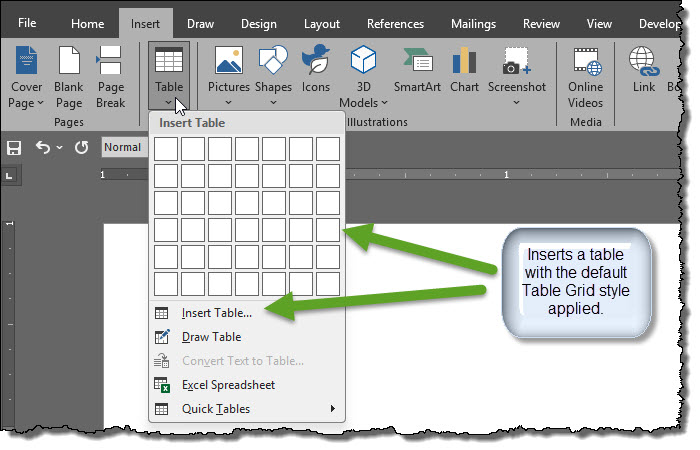
Using a clean unaltered Normal template (i.e., fresh out of the box installation of Word), Table Grid is the default table style applied to any new (not a previously defined and saved Quick Table) inserted into a Word document using the ribbon Insert>Table>Insert Table or Insert Table.
The Table Grid style has no condition formatting defined. However, after inserting a new table, the Table Style Options checkbox configuration is illustrated below.
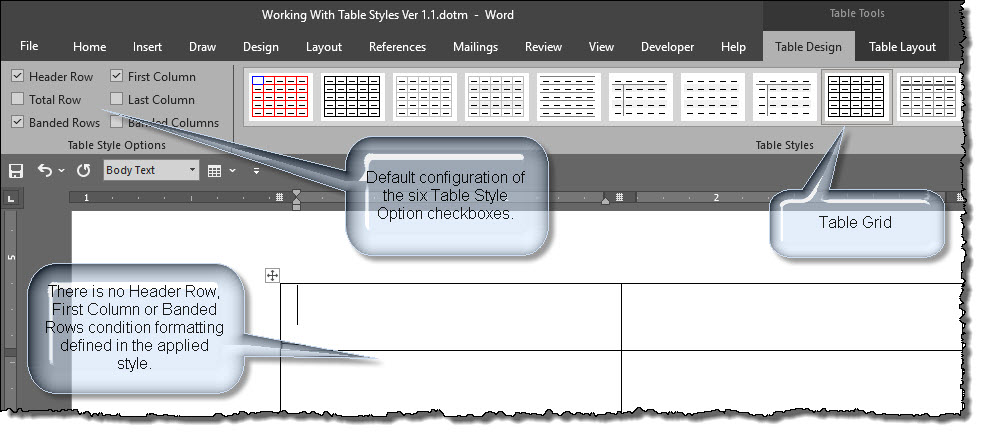
Table Normal is the default table style applied to a new table inserted into a Word document using ribbon Insert>Table>Draw Table or a simple VBA procedure, as shown below.
Sub InsertSimpleTable()
Dim oTbl As Table
  Set oTbl = ActiveDocument.Tables.Add(Selection.Range, 2, 4)
  Application.ScreenRefresh
  DoEvents
  MsgBox "The following style is applied to this table: " & oTbl.Style.NameLocal
lbl_Exit:
  Exit Sub
End Sub
Table Normal is the base style for Table Grid and like Table Grid, it has no condition formatting defined. In this case, the Table Style Options checkbox configuration is different and illustrated below.
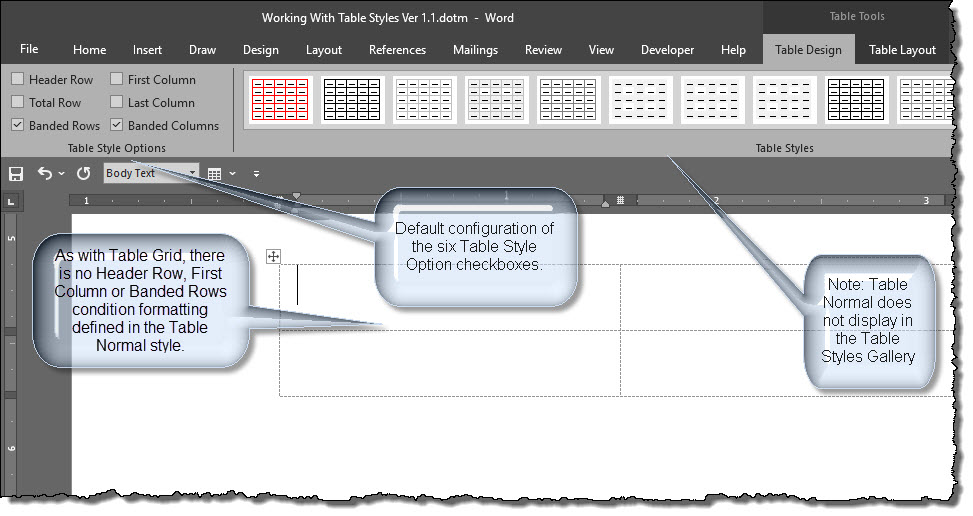
In both these instances the configuration is utterly useless and confusing. In both cases, all six checkboxes are enabled. In one instance three are checked and three are uncheck. In the other instance two are check and four unchecked. At this point the uninformed user can check or uncheck the boxes until the cows come home and it has absolutely no bearing on the style applied to the table or the physical table displayed.
The "Great Oz" (i.e., various AI generated responses) makes a significant effort to explain and justify these "defaults." It all reads as a lot of nonsense about improving data readability, reduce formatting time, and establishing visual consistency across documents.
The "Great Oz" also provides steps to change this bizarre behavior; or set and save your desired default. I have tried all the methods I could find and none work.
The following is a VBA procedure used to create a user defined table style that contains two distinct condition format definitions (wdFirstRow and wdLastRow). The user has frequent need of tables with this specific formatting across multiple documents. Both header row and total row are enhanced to focus client attention on the critical information they contain. The user is looking to avoid having to manually format each table and feels a customized style will do the job.
Sub CreateTableStyle2Conditions()
Dim oStyle As Style
  Set oStyle = ActiveDocument.Styles.Add("My Table Style", wdStyleTypeTable)
  oStyle.BaseStyle = "Table Grid"
  With oStyle.Table
    With .Condition(wdFirstRow)
      .Shading.BackgroundPatternColor = wdColorLightTurquoise
      .Borders.Enable = True
    End With
    With .Condition(wdLastRow)
      .Shading.BackgroundPatternColor = wdColorRose
      .Borders.Enable = True
    End With
  End With
lbl_Exit:
  Exit Sub
End Sub
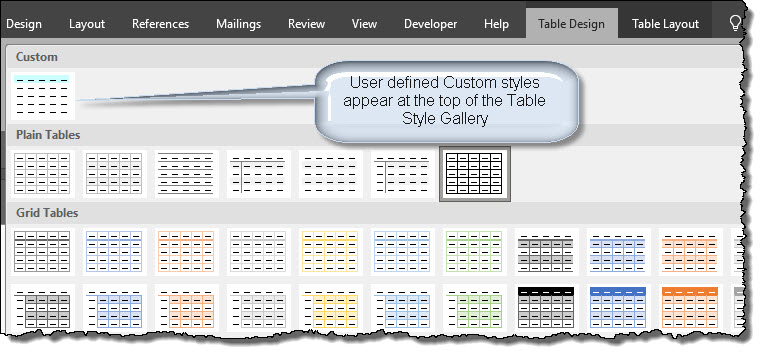
After creating a table style either through VBA shown above or with the UI, the new table style appears in the Table Style Gallery under the heading "Custom."
 Note:
When a new table style is created with VBA, if not explicitly defined otherwise,
the underlying base style is Table Normal.
Note:
When a new table style is created with VBA, if not explicitly defined otherwise,
the underlying base style is Table Normal.
Any experienced Word user will know, and any novice Word user will probably expect, that when a paragraph style is created and applied to text, that text will display the formatting defined in the style.
Likewise, any experienced Word user will know, and any novice Word user will probably expect, that when an existing paragraph style is modified that any text with that style applied is instantly and automatically updated to display any changed formatting.
This behavior is both reasonable and logical. The user has defined what they want and expect to see when the style is applied, and they do.
The following illustrates the Table Style Options checkbox configuration after the new "My Table Style" is applied to the table previously inserted with VBA.
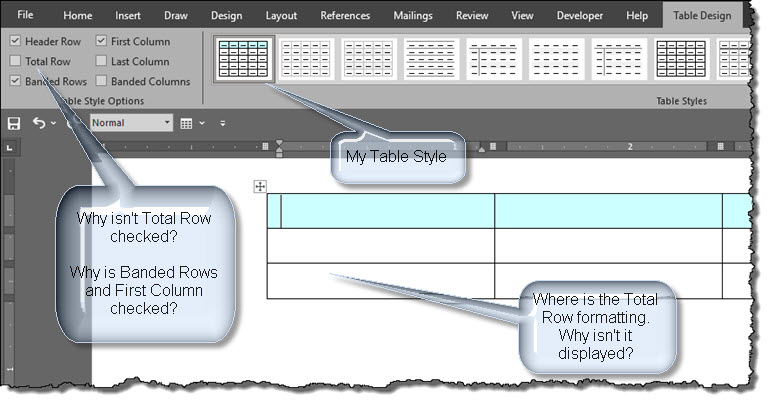
After applying the style, the user wants and expects to see the header row and total row formatting defined in the style. They care nothing about first column or banded rows. As ridiculous as it may sound, to configure the Table Style Options to match the condition formatting and correctly display a table as explicitly defined in a table style, the user must first take these extra steps:
Only after performing those extraneous steps does the table display as the user intended in the style definition.
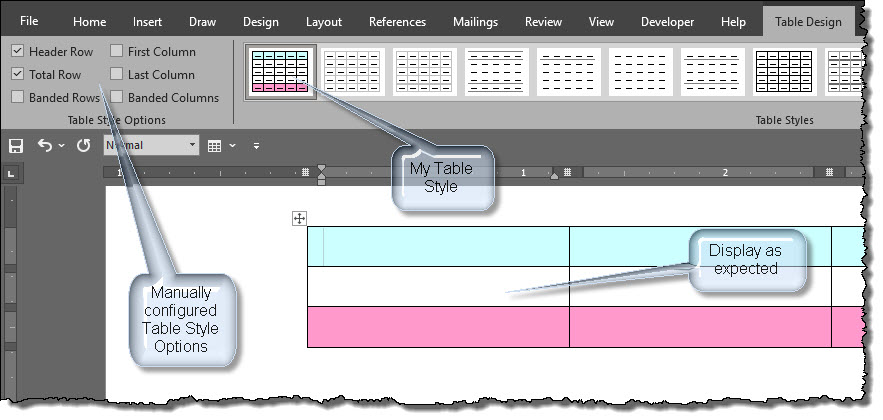
Didn't we improve data readability simply by defining the condition
formatting in the table style? How did our fussing with the Table Style
Options
buttons reduce formatting time?
Now, lets modify the "My Table Style" to apply a third condition either using VBA or with the UI
Sub ModifyTableStyle1()
Dim oStyle As Style
  Set oStyle = ActiveDocument.Styles("My Table Style")
  With oStyle.Table.Condition(wdNWCell)
    .Shading.BackgroundPatternColor = wdColorBrightGreen
    .Borders.Enable = True
  End With
lbl_Exit:
  Exit Sub
End Sub
As previously discussed, modifications to paragraph style attributes (e.g., change font color from wdColorAutomatic to wdColorBlue) display automatically and globally throughout the document when the modifications are made using VBA, or saved using the UI.
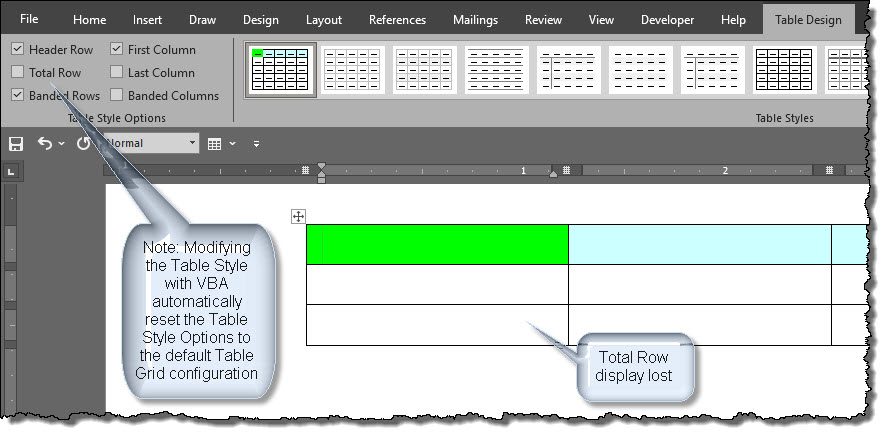
To the user's possible dismay, the same is not true with Table Styles. As shown above, in modifying the style with VBA, the Table Style Options checkboxes have been reset to the Table Grid default configuration and the style defined Total Rows formatting is no longer displayed. As before, after modifying the style, we must again take additional steps. In this case:
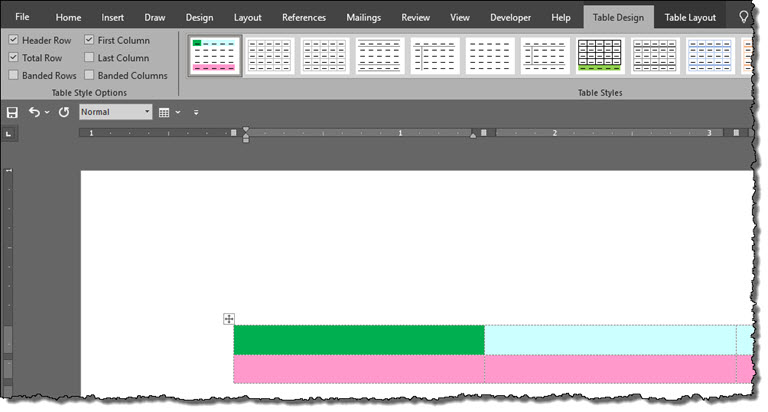
Note:
Had we performed the same condition formatting with the user interface (rather
than with VBA), the table
display and Table Style Options checkboxes would not have changed. In that
case we would have had to physically check the Table Style Options Total Row checkbox to
display the table as intended by the style definition.
Again, the user must take additional steps to reduced formatting time? It can get much worse.
Now lets consider the user working with a document that has five, ten or a hundred tables. Better yet, lets consider that user has a folder with five, ten or a hundred documents with each document containing five, ten or a hundred tables.
In this scenario, each document shares the same attached template and each table in each document is formatted with the simple default table style Table Grid. As before, the users wants to improve data readability, reduce formatting time and establish visual consistency across documents. The steps:
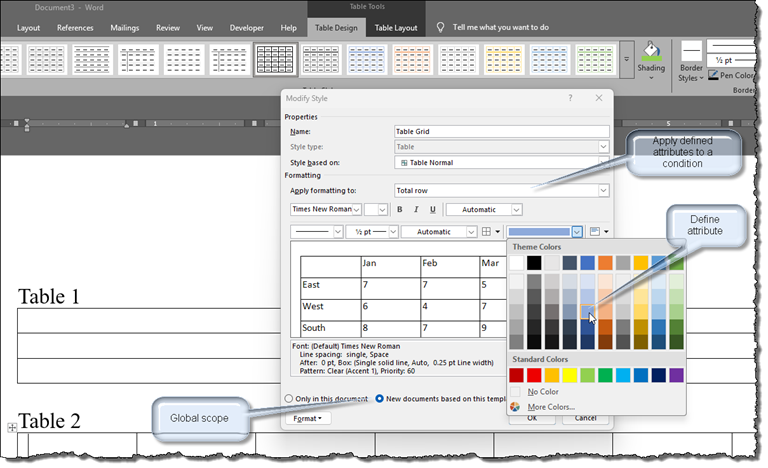
As we have already seen a) the default Table Style Options checkbox configuration for the Table Grid style is Heading Row, First Column and Banded columns and b) changes to the table style conditions are not displayed until the Table Style Options checkboxes updated.
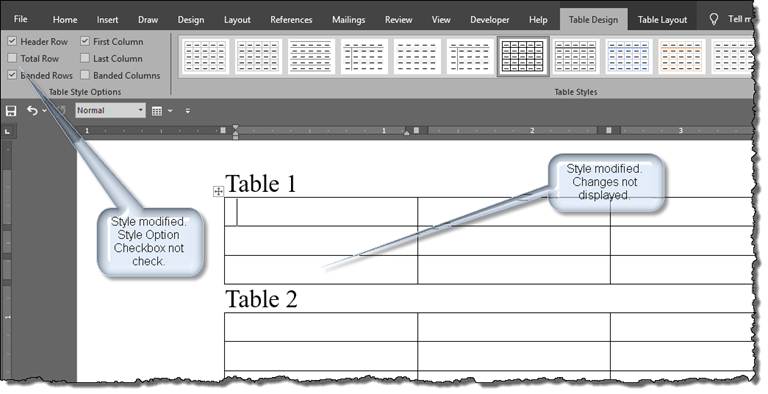
In this case, the table is still selected, the Table Design tab is still active so, next:
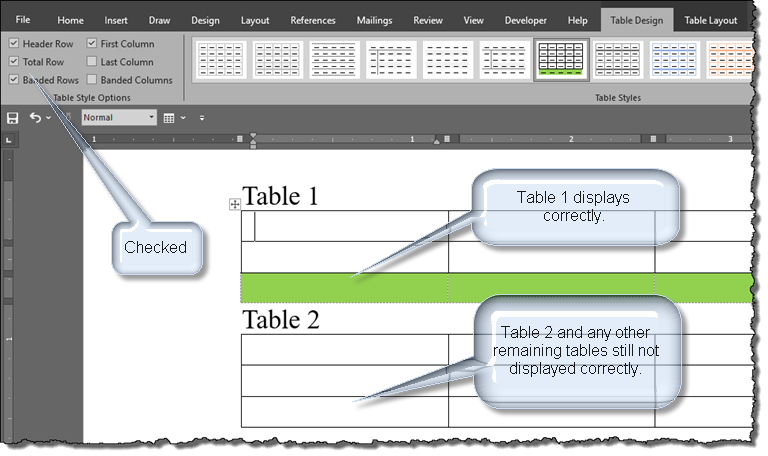
The Table Style Options check box configuration is independent for each table in the document. Even though one of the stated purposes of the Table Style Options is "reduce formatting time," the user must now physically select tables and physically reconfigure the Table Style Options checkboxes one by one for every table in the document and then every document in the folder.
If you are still reading, I think that I have validated my low opinion of the Table Style Options feature expressed earlier. However, don't get me wrong. The feature does have utility and I don't think it should be removed, just fixed.
I can see cases where it would be beneficial to quickly toggle the display of defined condition formatting from on to off and from off back to on (e.g., preparing for a presentation, the presenter might first turn off all condition formatting and then while making the presentation turn on each condition as that region of a table is discussed.
In a perfect world, Table Style Options Buttons checkboxes would be configured (checked
or unchecked, enabled or disabled) to
match the condition formatting defined in the of the table style applied to the selected table.
When a user wishes to hide the display of a defined condition formatting, they can then toggle the formatting off by unchecking the associated enabled checkbox.
Unfortunately, it is not a perfect world and I have little confidence that Microsoft will ever adopt the suggestion made above. In the meantime, there are few things that users can do to mitigate the behavior discussed above:
A table formatted with a style containing condition formatting with the Table Style Options checkboxes configured to display the conditions applied can be saved as a building block. The saved building block will retain the Table Style Options applied when the building block is inserted into a document. The saved building block appears in the ribbon Insert>Tables>Quick Tables gallery. This provides a method of inserting a fixed sized table with the proper formatting applied and displayed but offers no relief working with existing tables.
To configure Table Style Options checkboxes with the condition formatting defined in a named table style on all tables in a document with that style applied, a pair of VBA procedures as shown below can be used. The user passes the name of table style and a true value for the options expected to display.
Sub ConfigTSO()
  'Substitute My Table Style with any named table style.
  'Here True is passed for the Heading Row, Total Row and First Column Table Style Options
   ConfigTSOforNamedStyle strName:="My Table Style", bHR:=True, bTR:=True, bFC:=True
End Sub
Sub ConfigTSOforNamedStyle(strName As String, Optional bHR As Boolean = False, _
              Optional bTR As Boolean = False, Optional bBR As Boolean = False, _
              Optional bFC As Boolean = False, Optional bLC As Boolean = False, _
              Optional bBC As Boolean = False)
Dim oTbl As Table
  For Each oTbl In ActiveDocument.Tables
    If oTbl.Style = strName Then
      With oTbl
        .ApplyStyleHeadingRows = bHR
        .ApplyStyleLastRow = bTR
        .ApplyStyleRowBands = bBR
        .ApplyStyleFirstColumn = bFC
        .ApplyStyleLastColumn = bLC
        .ApplyStyleColumnBands = bBC
      End With
    End If
  Next oTbl
lbl_Exit:
  Exit Sub
End Sub
Note: the above macro could be run
as on a batch (folder) of documents. See my:
Process All Files in a Batch Folder
tips page.
A single VBA procedure can be used to insert a new table and ensure that the Table Style Options align with the condition formatting defined in the table style applied:
Sub InsertMyFormattedTable()
Dim oTbl As Table
  Set oTbl = ActiveDocument.Tables.Add(Selection.Range, 4, 2)
  oTbl.Style = "My Table Style"
  'Note: While not specifically required for each option, I explicitly set all six _
  to the configuration that I would expect if Word did it automatically.
  With oTbl
    'Configure as appropriate for the conditions defined in the style
    .ApplyStyleHeadingRows = True 'Optional, checked by default
    .ApplyStyleLastRow = True 'Required, unchecked by default
    .ApplyStyleRowBands = False 'Optional, but checked by default in this case and _
                                style does not have a condition defined for row banding
    .ApplyStyleFirstColumn = True 'Optional, checked by default
    .ApplyStyleLastColumn = False 'Optional, unchecked by default
    .ApplyStyleColumnBands = False 'Optional, unchecked by default
  End With
lbl_Exit:
  Set oTbl = Nothing
  Exit Sub
End Sub
When a table style is modified to change condition formatting on one or more conditions using a VBA procedure, the Table Style Options checkboxes can be reconfigured for the selected table and all other preexisting tables in the document by calling ConfigTSOforNamedStyle in the code. The following procedure modifies the "My Table Style" and reconfigured the Table Style Options checkboxes for any existing tables in the document with the "My Table Style" applied:
Sub ModifyTableStyle()
Dim oStyle As Style
Set oStyle = ActiveDocument.Styles("My Table Style")
  With oStyle.Table
     .Borders.Enable = True
    With .Condition(wdFirstRow)
      .Shading.BackgroundPatternColor = wdColorLightGreen
      .Borders.Enable = True
    End With
    With .Condition(wdLastRow)
      .Shading.BackgroundPatternColor = wdColorLightGreen
      .Borders.Enable = True
    End With
    With .Condition(wdFirstColumn)
      .Shading.BackgroundPatternColor = wdColorRose
      .Borders.Enable = True
    End With
    With .Condition(wdNWCell)
      .Borders.Enable = True
      .Font.ColorIndex = wdBrightGreen
      .Shading.BackgroundPatternColor = wdColorBlue
      .Shading.ForegroundPatternColor = wdColorWhite
      .Shading.Texture = wdTextureDarkDiagonalCross
    End With
  End With
  'Call Table Style Options update procedure
  UpdateTSOforNamedStyle strName:="My Table Style", bHR:=True, bTR:=True, bFC:=True
lbl_Exit:
  Exit Sub
End Sub
 See: Installing Macros for instructions on how to set up and use the macros provided in this Microsoft Word Help & Microsoft Word Tips page.
Note: This tips page, illustrations and examples were developed using Word 2019.
That's it! I hope you have found this tips page useful and informative.
The information, illustrations and code contained in my "Microsoft Word Tips" are provided free and without risk or obligation.
However, the work is mine. If you use it for commercial purposes or benefit from my efforts through income earned or time saved then a donation, however small, will help to ensure the continued availability of this resource.
If you would like to donate, please use the appropriate donate button to access PayPal. Thank you!
This page was last updated on
August 24, 2026
Website
Privacy Statement
Back to top  Back to
Word Tips
Back to
Word Tips