The Anchorage
Personal website of Gregory K. Maxey, Commander USN (Retired)
The Anchorage
Personal website of Gregory K. Maxey, Commander USN (Retired)
The information, illustrations and code contained in my "Microsoft Word Tips" are provided free and without risk or obligation.

However, the work is mine. If you use it for commercial purposes or benefit from my efforts through income earned or time saved then a donation, however small, will help to ensure the continued availability of this resource.
If you would like to donate, please use the appropriate donate button to access PayPal. Thank you!



The purpose of this Microsoft Word Tips & Microsoft Word Help page is to publish and describe my Count Utility for Word.
I developed this Word Template Add-In after working with a client on a document that spanned over 1,200 pages. I soon discovered that it took considerable time for Word's built-in word count function to process a document of that size and while working with Word over the past 30 plus years, I have noted that the built-in function has several shortcomings.
The development goals were to increase processing speed and, where I could, address each shortcoming listed below.
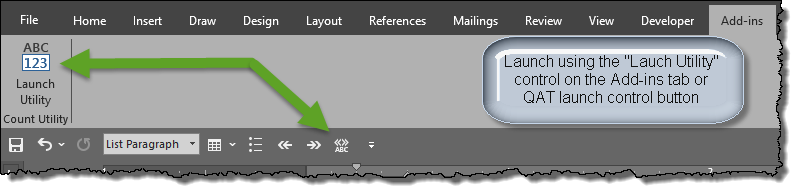
The Add-In user interface is a custom VBA Userform that displays when there is an active document and the user clicks the "Launch Utility" button control on the Add-Ins tab or the Quick Access Toolbar (QAT) launch button.
The configuration of the user interface displayed is determined by the active document content, selected content (if any) and any user selected options. For a simple basic document with nothing selected, the most likely user-interface displayed is shown below.
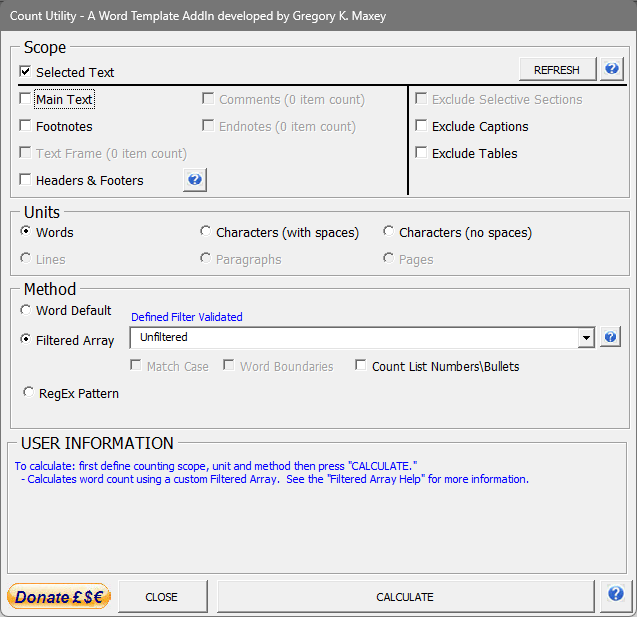
The interface enables users to define the scope of the count, the count unit and method of counting. The preselected defaults are 1) Main Text if nothing selected or the Selected Text if text is selected, 2) Words as the unit and 3) Filtered Array (Unfiltered) as the method. A simple click on the "CALCULATE" command returns the count in each of the selected scope and the total count.
In a more complex document (e.g., documents with two or more sections, tables, captions, footnotes or endnotes, textboxes or other drawing objects containing text, or comments), the additional scope and the exclude options are enabled.
Users can define these scope to suit their particular needs.
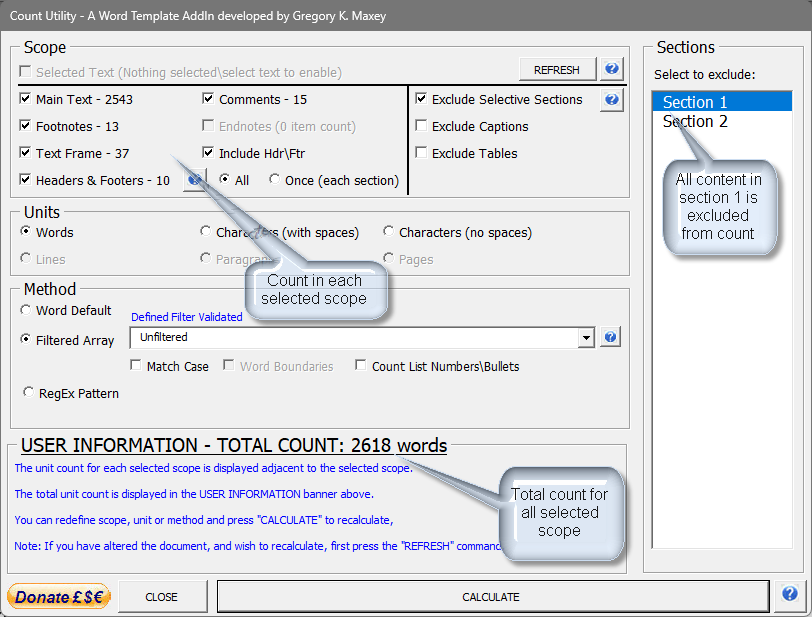
The scope checkboxes and option buttons allow the user to specify which content areas in the active document is counted.
The scope checkboxes and options improves the built-in Word Count utility by providing a means to exclude sections, tables, captions and it returns the specific count for each specific document content region.
 *
- Counting defined units contained in textboxes or drawing shapes containing
text that are anchored to the headers or footers is optional when the Text Frame
option is checked.
*
- Counting defined units contained in textboxes or drawing shapes containing
text that are anchored to the headers or footers is optional when the Text Frame
option is checked.
**
- While relatively simple in a basic single section document, counting words (or
other units) in headers and footers can quickly become an extremely complex process.
The elements increasing complexity are documents with two or more sections, the presence of conditional fields (e.g., IF or StyleRef) in headers or footers, the three document story ranges (i.e., First page, Primary pages, Even pages) related to each document section header and footer, the three different options for section start page (i.e., New page, Even page, Odd page) and the presence of textboxes or other shape objects containing text anchored to headers or footers.
For processing and handling these complexities, the following options are
provided:
- Disqualified from
count if headers/footers contain one or more conditional fields (see Note 1 below).
- Don't count (leave the "Headers & Footers" checkbox
unchecked)
- Count Once (each section). Sum of the count of
occurrences in first page (if used) + count of occurrences in first
even page
(if used) + count of occurrences in first primary page (or odd page if used) in each
section
- Count All occurrences. Sum of the
count of occurrences in first page (if used) + count of occurrences in even
pages
* number of even pages (if used) + count of occurrences in
primary pages (or odd pages if used) * number of
primary/odd pages in each section.
1. The complexity of a process to count the number of words that could result in the header or footer on a particular page as a result of a conditional field is hardly worth the effort and is beyond the scope of this utility.
2. Due to complexities described above, this feature should be used judiciously, especially with complex documents and if extreme accuracy is critical even validated by a manual count.
3. Traditional frames anchored to headers or footers are counted with the associated header or footer story range.
4. To include the count of words contained in textboxes\shape text frames anchored to headers\footers, use the Text Frame and
Headers & Footers checkboxes.
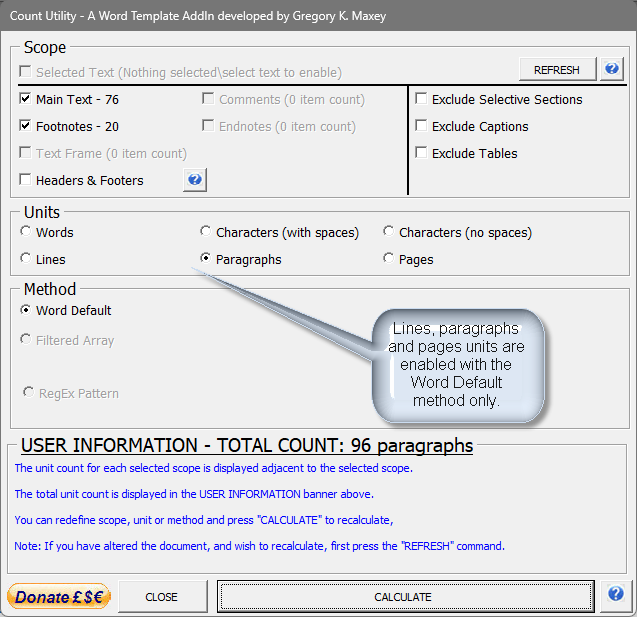
The count units available in the default dialog (Filtered Array method) are Words, Characters (with spaces) and Characters (no spaces). Lines, paragraphs and pages are disabled.
The count units available with the Word Default method are Word, Characters (with spaces), Characters (no spaces), lines, paragraphs and pages.
The count lines process includes an option to exclude empty paragraphs\line breaks (used to create spacing between lines of content).
When the RegEx Pattern method is selected, the default and available unit is "Occurrences."
Unlike the built-in utility that returns the count of all units, this utility returns only the count of the selected unit.
If
you need the count of multiple units i.e., both Words and Characters (no
spaces), first
calculate for word count then select the Characters (no spaces) option and
press "CALCULATE."
The Count Utility for Word provides three counting methods described below:
Both the built-in Word Count utility and the Word Default counting method use the VBA "Range.computestatistics" method to evaluate and return the unit count.
The Word Default method continues to exhibit several of the count shortcomings discussed previously, but unlike the built-in Word count utility, the Word Default method supports the scope provided enhancements.
I have provided the Word Default method as a means for count comparison with the Filtered Array Method and to provide the lines, paragraphs and pages count capability.
Note
- Undisciplined formatting can result in misleading line counts. See:
Count Lines of Text
The Filtered Array counting method provides a reliable, more accurate count and, under most configurations (*), a near order of magnitude speed enhancement when processing very large documents. The method works using the following process:
*Note
certain scope and exclusion configurations can have a significant negative impact
on processing speed. For example, when one or more sections are excluded with
footnotes, endnotes or comments are also checked, the process then much check each
individual footnote, endnote or comment to determine if its reference anchor is
located in a counted section. For documents with a large number of
footnotes, endnotes or comments, this anchor reference check can add significant
processing time.
Unlike Word's built-in word count utility and the Word Default method decribed above, this method:
I have created and defined three built-in patterns to facilitate common count requirements:
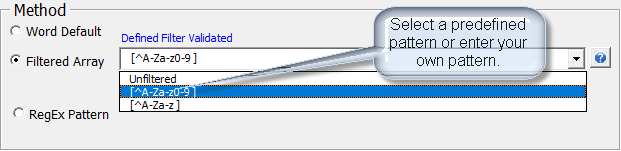
1. The
default ""Unfiltered"" option with "Count List Numbers\Bullets" will return a
count that most closely matches Word's default word counter. For a comparison,
open the template add-in as the active document and compare the Word Default
method count with the Filtered Array method count. A table explaining the
variations is included for reference.
Users may enter any valid RegEx pattern to customize the the count by filtering (excluding) characters, words or phrases to suit a particular need. The following are just a few examples provided for illustration:
A RegEx filter pattern can range from relatively simple to extremely complex. They can be unforgiving and require careful and thoughtful construction using character classes, quantifiers, wildcards, anchors, grouping, escape characters etc., to prevent misleading or confusing results. The internet is replete with references for creating RegEx filter and match expressions and examples.
I used the following reference for creating the examples used in this tips page: https://docs.validatar.com/docs/commonly-used-regex
Note: VBA does not support advanced LookBehind RegEx patterns.
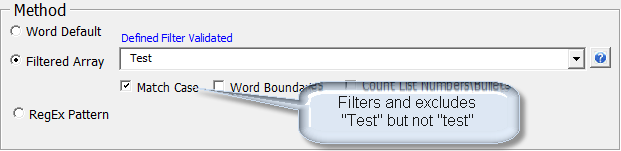
The "Match Case" option is enabled with user defined patterns and ensures strict pattern matching.
The "Word Boundaries" option is enabled with user defined patterns and is provided to simplify pattern construction.
In the examples provided above, I used the RegEx word boundary anchor "\b" to ensure that only the complete words defined were filtered. While not critical in the examples above, consider:
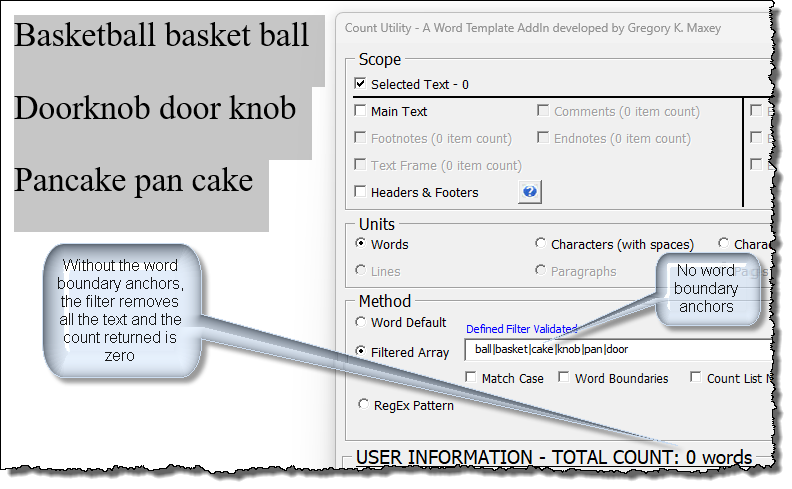
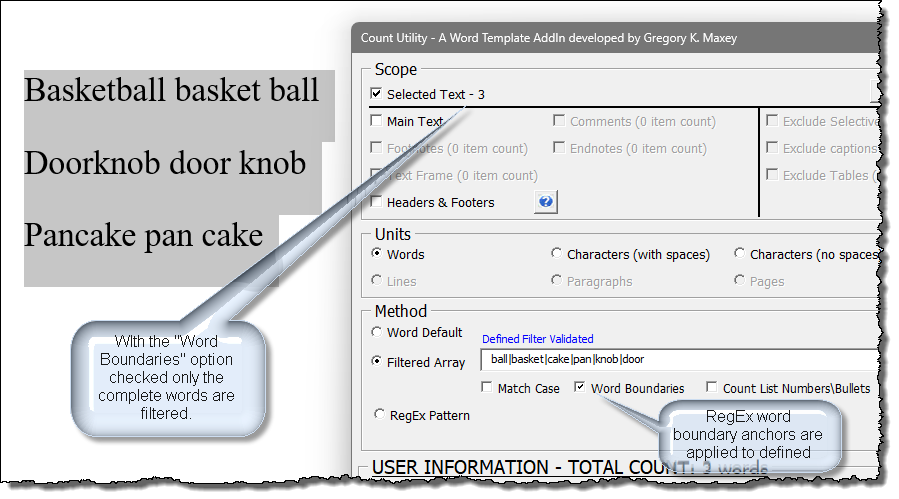
As previously mentioned, RegEx can be unforgiving. Without the word boundaries defined in the RegEx pattern, the RegEx object filtered out all of the selected text. Probably not what the user intended! Checking the "Word Boundaries" will modify the simplified pattern entered to enclose each of the elements in word boundary anchors.
Use
of the Word Boundaries option should be limited to single or multiple word
entries where the "|" character indicates a logically Or expression. This
is not a "hard" rule, but use
in more complex expressions may result in inaccurate counts.
The "Count List Numbers\Bullets" option allows you to include or exclude list number numbers and bullets in the count.
Unlike the Filtered Array method which filters and excludes a defined RegEx pattern, the RegEx Pattern method looks for matching patterns in the text to evaluate. When this method is selected, the returned unit in the selected scope(s) and total count is "occurrences."
The method has no assigned default pattern and three predefined patterns a user may select. As with the Filtered Array method, users may also define and create any properly constructed RegEx pattern.
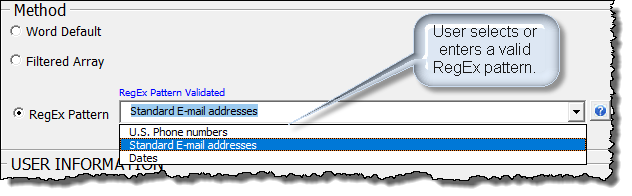
As illustrated above, the predefined user selectable patterns are:
These are relatively complex RegEx patterns that I have predefined in the underlying VBA code.
Users may enter any valid RegEx pattern to match and count occurrences in the evaluated text.
The "Match Case" option is enabled with user defined patterns and ensures strict pattern matching.
The "Word Boundaries" option is enabled with user defined patterns and is provided to simplify pattern construction.
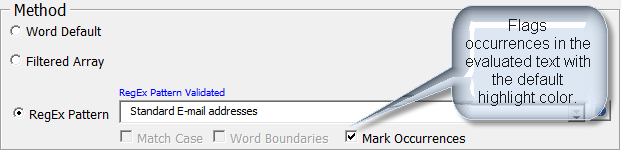
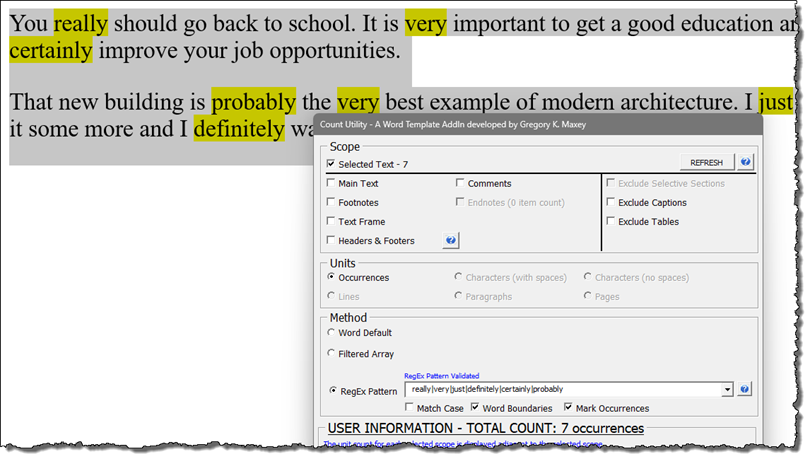
The "Mark Occurrences" option causes all matched occurrences to be flagged in the evaluated text with the default highlight color.
In the illustration below, the user wishes to count and flag all occurrences in the text where the length of the word exceeds 12 characters.
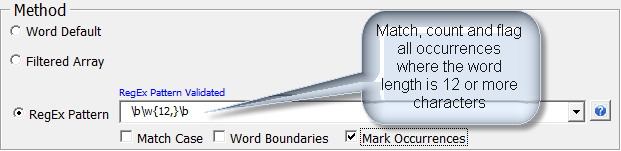
In
the example above, I explicitly defined the word boundary anchors "\b" in
the pattern in lieu of using the "Word Boundaries" option. With the
"Word Boundaries" option checked, "\w{12,}" would have worked equally as
well.
In the example below, I used a pattern and options to match, count and flag occurrences of several unnecessary filler words or words that don't add important meaning to the text.
Download the Count Utility for Word here: Count Utility for Word
For more on template add-ins and how to load them, see: Organizing Your Macros/Template Add-ins at: Installing Macros
Note: The
Add_in and this tips page, illustrations and examples were developed using Word
Microsoft Express Web, Snagit and Microsoft Word 2019.
That's it! I hope you find the Count Utility for Word useful and have found this tips page informative.
The information, illustrations and code contained in my "Microsoft Word Tips" are provided free and without risk or obligation.
However, the work is mine. If you use it for commercial purposes or benefit from my efforts through income earned or time saved then a donation, however small, will help to ensure the continued availability of this resource.
If you would like to donate, please use the appropriate donate button to access PayPal. Thank you!
This page was last updated on
August 22, 2026
Website
Privacy Statement
Back to top  Back to
Word Tips
Back to
Word Tips