The Anchorage
Personal website of Gregory K. Maxey, Commander USN (Retired)
The Anchorage
Personal website of Gregory K. Maxey, Commander USN (Retired)
The information, illustrations and code contained in my "Microsoft Word Tips" are provided free and without risk or obligation.

However, the work is mine. If you use it for commercial purposes or benefit from my efforts through income earned or time saved then a donation, however small, will help to ensure the continued availability of this resource.
If you would like to donate, please use the appropriate donate button to access PayPal. Thank you!



This Microsoft Word Tips & Microsoft Word Help page discusses Table Styles. While it contains information and techniques relevant to any Word user, the target audience is the Word developer as the content focuses primarily on using table styles with VBA.
The discussion that follows was inspired by my own struggle coming to grips with table styles and the excellent work and invaluable contributions of the renowned former Word MVP and late Shauna Kelly. Shauna covered this topic extensively in her series of articles at Table styles. While closely related, the content here is written in my own style, using my own terms. The content may diverge from, omit, or where observations warrant even contradict Shauna's published content. This is in no way intended to disparage her work.
Shauna's articles outline the observations, bugs and anomalies that she observed when working with earlier versions of Word. Some things have changed since those articles were last updated. My objective, is to provide VBA procedures that replicate her tests and compare her observations with the results I observe now using Word 2019. This content should be considered a companion to her work, and I encourage each person reading this content to also read and consider hers.
A Word Table Style is a reusable collection of formatting rules that you can apply to individual tables with a single click. Components include:
For the discussion that follows, you can download the companion Testing and Demonstration Documents. The document set includes:
Table styles were introduced with Word 2002, well after the more familiar paragraph and character styles. I feel confident, due to limited resources and to reduce costs, that Microsoft made every effort to "mesh" the new table style object into the existing fully developed style object. For me, that goes a long way in accepting some (not all) of the anomalies and bugs still present in table styles as discussed below.
Complicating matters further, is the default "empty" Normal paragraph style and the the hierarchy of how Word applies formatting to document content using the document defaults (font and paragraph), table styles, then paragraph styles in that order. Without a proper understanding of the default Normal style and this hierarchy, and despite formatting explicitly defined in a table style, the content actually displayed can be heavily and adversely affected by the physical table's overlaying paragraph style (the style applied at the table insertion point or applied directly to a table range).
While researching and testing to develop this tips page, I discovered the following general behaviors and formulated general practices. Understanding and following these can minimize both errors and frustration when working with table styles:
 See:
For more on style hierarchy and the "empty" Normal style, see:
Behind the Curtain: Styles Order of Operations and
How do Document Defaults relate to the Normal Style?.
See:
For more on style hierarchy and the "empty" Normal style, see:
Behind the Curtain: Styles Order of Operations and
How do Document Defaults relate to the Normal Style?.
Defines the base underlying behavior of all rows in a table with the style applied.
Qualified
table means any table that given table size (height), page size, margins or other
formatting applied would fit on one page.
|
Condition |
Code |
Effect |
|
|
oStyle.Table.Condition(wdFirstRow) _ |
The first row will be displayed on the same page as the first
paragraph of the second row |
|
Last row |
oStyle.Table.Condition(wdLastRow) _ |
The last row will be displayed on the same page as the first
paragraph following the table. Can be used to keep the last row of a
table on the same page as its following caption. |
|
First column |
oStyle.Table.Condition(wdFirstColumn) _ |
Word will (attempt to) keep all rows on the same page as the
following paragraph. In a qualified table, this has the effect of
keeping the whole table and the paragraph immediately following
the table on one page. If the table is too large to fit on one
page, then the table will spill over onto second and if necessary
subsequent pages. This has several consequences:
If the paragraph following the table is a caption, this has the
side effect of keeping the table with its caption (unless
you're in the unhappy position where the table itself would fit on
one page, but the table plus its caption is too tall; in that case,
the caption will be left alone on the second page).
If the paragraph following the table is not a caption, then you may
see awkward pagination as Word tries to keep too much together on
one page. |
|
Last column |
oStyle.Table.Condition(wdLastColumn) _ |
Can be set to True (returns -1) or False (returns 0). No apparent effect |
|
Top left cell |
oStyle.Table.Condition(wdNWCell) _ |
The first row will be displayed on the same page as the first
paragraph of the second row. That is, this has the same effect as
setting KeepWithNext on the first row. |
|
Top right cell |
oStyle.Table.Condition(wdNECell) _ |
Can be set to True (returns -1) or False (returns 0). No apparent effect |
|
Bottom left cell |
oStyle.Table.Condition(wdSWCell) _ |
The first paragraph of the last row will be displayed on the same
page as first paragraph following the table. That is, this has the
same effect as setting KeepWithNext on the last row. |
|
Bottom right cell |
oStyle.Table.Condition(wdSECell) _ |
Can be set to True (returns -1) or False (returns 0). No apparent effect |
|
Column and row banding |
oStyle.Table.Condition(wdEvenRowBanding)_
oStyle.Table.Condition(wdEvenColumnBanding)_
oStyle.Table.Condition(wdOddRowBanding) _
oStyle.Table.Condition(wdOddColumnBanding) _ |
Can be set to True (returns -1) or False (returns 0). No apparent effect |
|
Since when we apply a True or False condition to a property, we
expect some effect, I agree with Shauna's classification of "No
apparent effect" on these conditions as little bugs.
However, since any effect of Last column, Top right cell or
Bottom right cell would be identical to the effect of the
corresponding First column, Top left cell or Bottom left cell it is
rather moot. As for the
column and row banding conditions, well ??? |
||
Table
styles, unlike paragraph styles, have a functional .Table property. It is
the .Table property .Borders property that should be used.
Applies to all borders in a table with the style applied.
Applies to borders around paragraphs of text within table cells. See: modTblBorders.Observation_6
Applies to border applied around text in a table cell. See: modTblBorders.Observation_7
Applies to borders applied around or in cells of the condition region. See: modTblBorders.Observation_8
Applies to borders applied around paragraphs in cells of the condition region. See: modTblBorders.Observation_9
Applies to borders applied around text in cells of the condition region. I can't see where I would ever use this property so I have no issue with Shauna's advice to avoid it. However, my observations differ from hers. See: modTblBorders.Observation_10
Shauna addressed the insanity, back then, of having 99 different table styles in the Table Design Table Style Gallery and provided two simple macro procedures to hide individual Built-In Table Styles. Here are Shauna's macros (slightly modified to suit my style):
Sub HideNamedTableStyle_MakeItVisibleWhenUsed()
  With ActiveDocument.Styles("List Table 1 Light - Accent 1") 'Substitute any table style name.
    .Visibility = True 'Counter intuitive
    .UnhideWhenUsed = True 'Intuitive
  End With
lbl_Exit:
  Exit Sub
End Sub

Sub HideNamedTableStyle_KeepHiddenEvenIfUsed()
  With ActiveDocument.Styles("List Table 1 Light - Accent 1") 'Substitute any table style name.
    .Visibility = True 'Counter intuitive
    .UnhideWhenUsed = False 'Intuitive
  End With
lbl_Exit:
  Exit Sub
End Sub
With Word 2019, using a new clean Normal template, the Table Design Table Gallery displays 105 built-in table styles in three categories:
The internet is now replete with AI generated solutions to remove one or more of these built-in table styles. Most simply to suggest selecting the style in the gallery and selecting "Remove from Style Gallery." That works for paragraph styles in the Home Table Style Gallery, but unfortunately there is no "Remove from Style Gallery" control provided for table styles.
There is a "Delete Table Style," but that simply deletes the styles formatting from the table with the selected style applied.
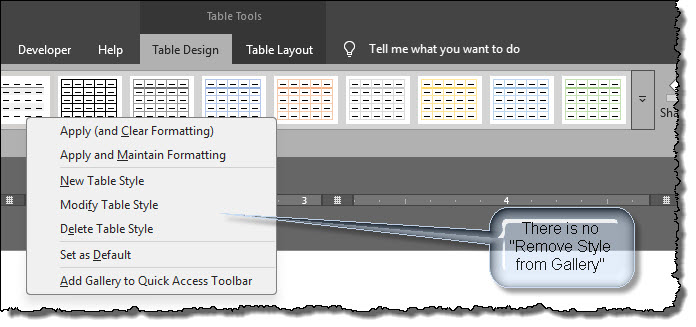
Others suggest hiding the built-in styles using the Manage Styles dialog Recommend tab. Again, this suggestion fails because the "Show", "Hide" and "Hide Until Used" commands in that dialog are always disabled (dimmed) for any table style selected.
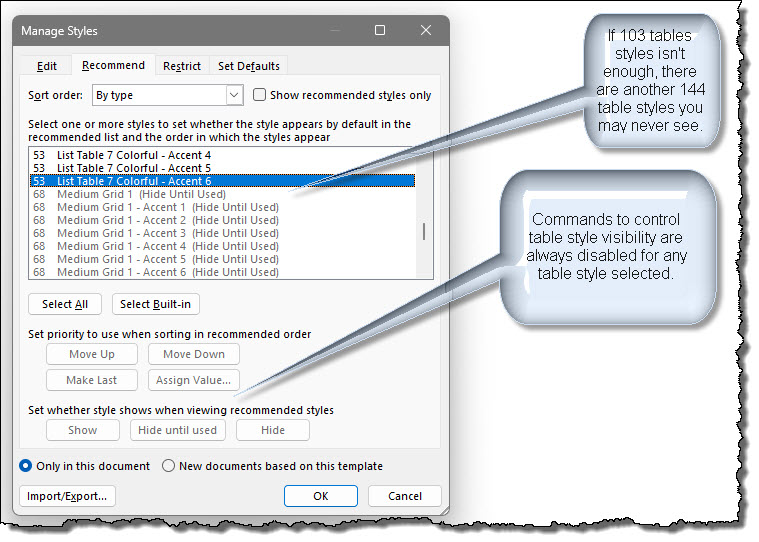
As it seems the features and functions of the Recommend dialog list are not applicable to table styles, it begs the question "Why are table styles in this list?"
Since they "are" listed, we know that in addition to the 105 table styles already cluttering up the Table Style Gallery, there are an additional 142 hidden from view until used:
Without the foray into the Style Manager dialog, the average Word may never have known these additional styles existed or if they did, how to apply them.
How are they applied for the first timee? Since the hidden (or Hidden until Used) styles are not shown in either the Table Style Gallery (or, if you have it displayed, the old toolbar "Classic Style Gallery"), ...
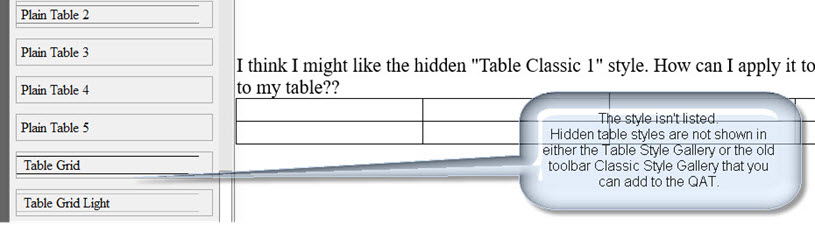
... the only apparent way is with with code. You can simply apply the hidden style to a selected table:
Sub ApplyHiddenTableStyle
  'Select the table before running this code
  Selection.Tables(1).Style = "Table Classic 1"
lbl_Exit:
  Exit Sub
End Sub
Or first make the style visible, then apply it to a table with the user interface:
Sub UnhideNamedTableStyle()
  'Substitute any table style name
  ActiveDocument.Styles("Table Classic 1").Visibility = False 'Counter intuitive
lbl_Exit:
  Exit Sub
End Sub
Once the style is used it is unhidden, it will appear under the Plain table category of the Table Style Gallery and if displayed, the old toolbar Classic Style Gallery.

Now we have 106 built-in table styles appearing in the Table Style Gallery. We could remove the ones we don't want one by one using Shauna's simple macros, or use more complex VBA procedures to manage the styles displayed. In the companion Test Document for this tips page, I have included VBA procedures to:
You can experiment with these procedures using the MacroButton fields in the Test Document.
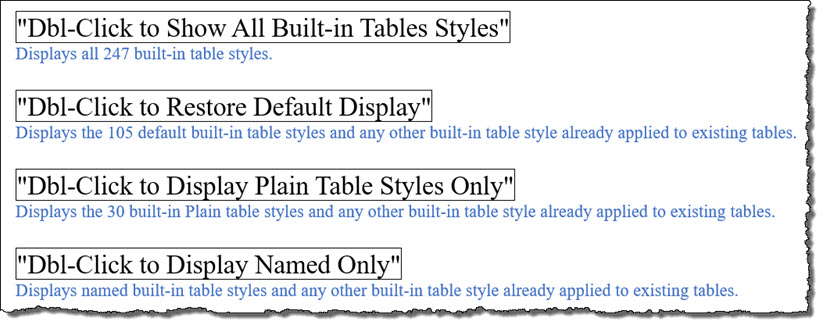
Shauna reported getting spurious errors. I never once experienced the type of error she described in this article. However, I can't discount it and have included her workaround in each of the applicable procedures used in this document.
Table
styles, unlike paragraph styles, have a "functional" .Table property. It is
the .Table property .Shading property that should be used.
Applies to cells in a table with the style applied. See: modTblShading.Observation_2
Applies to cells in a condition region of a table with the style applied.
Applies to background color, foreground color and texture applied to paragraphs within cells of tables with the table style applied. Contrary to Shauna's observations, this method can work with the following anomalies:
Applies to background color, foreground color and texture applied to text within cells of tables with the table style applied. Contrary to Shauna's observations, this method can work with the following anomalies:
Applies to background color, foreground color and texture applied to paragraphs within cells in a condition(n) region of of tables with the table style applied. Contrary to Shauna's observations, this method can work with the following anomalies:
Applies to the shading properties of text within cells
in a condition(n) region of tables with the table style applied. Contrary to Shauna's observations
regarding Word 2010, this
method cannot apply the three crucial .Shading properties to text.
See:
modTblShading.Observation_9
At this point, Shauna had thrown in the towel and given up on table styles. I do not intend to contradict anything she expressed in that article as it was based on her observations at the time using an older version of Word.
However, while admittedly table styles remain somewhat "half-baked," given that you understand the importance of the "empty" Normal style and Word's style hierarchy, I think there is some utility with table styles making them worthwhile.
The key to table styles getting along with paragraph styles is simply to understand that any explicitly defined formatting in a paragraph style that is applied as a table's overlaying paragraph will override the table style formatting. Keep Normal style free of explicitly defined formatting and always use Normal style as the overlaying paragraph and you will be trouble free.
In the test document, there are several MacroButton fields that demonstrates the results of applying various paragraph styles as a table's overlaying paragraph style.
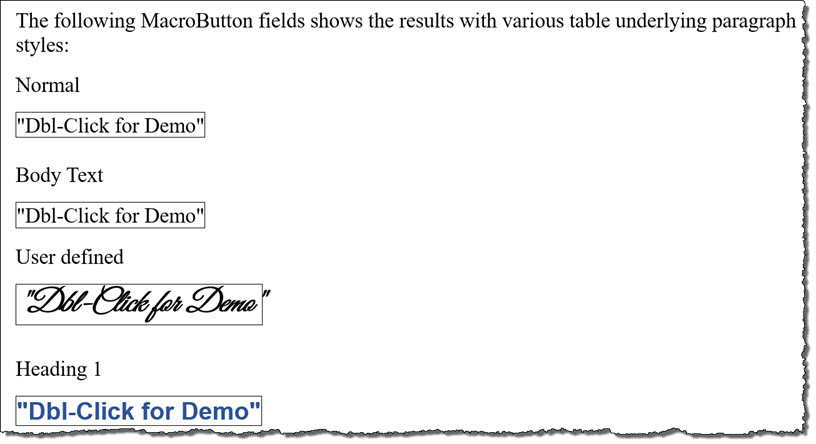
Several very experienced users have expressed that they feel that using Normal style as the
overlaying paragraph style for tables seems illogical and that inexperienced/uninformed users
are bound, at some point, to corrupt the Normal style with direct
formatting. A suggested alternative approach is:
- Create a new style based on "No style".
- Give the new style a logical name for table application e.g., Tables,
Table Overlay, etc.
- Apply that style as the overlaying paragraph style to all tables.
As
long as no direct formatting is defined in the new style, this also will
work and the style will behave
like the "empty" Normal style.
Table styles are not perfect, but what in Word is? Personally, I can't image a case where I would need to know the returned value a border property or shading property. With that said, and in view of all my observations above, there is really only one issue unresolved, and I am for giving tables styles a second chance. That issue is the stubbornly contrary diagonal borders that can't be properly applied with code. In cases where diagonal borders are required, we will just have to finalize style with the user interface.
The image below illustrates a table with a half-baked table style applied. The style is developed with VBA. Following the general observations listed above; the table's overlaying paragraph style is the "empty" Normal style.
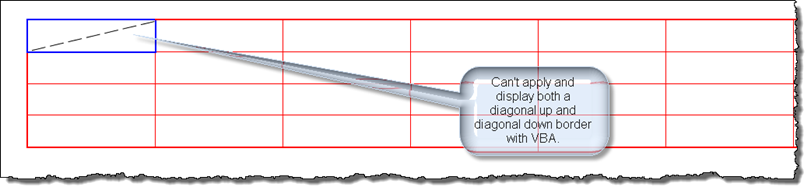
The following VBA code and comments describes how the table style and table where developed and displayed.
Option Explicit
Private oTbl As Table
Private oStyle As Style
Private oTS As TableStyle
Private oCS As ConditionalStyle
Private strStyleDef As String
Sub CreateHalfBakedTableStyle()
  PrepForHalfBakedDemo
  'Apply font to overall table
  With oStyle
    .Font.Name = "Courier New"
    .Font.Size = 8
    .Font.ColorIndex = wdDarkRed
  End With
  'Apply condition font and paragraph attributes to first row
  With oTS
    'Apply table borders
    BorderDefintion .Borders(wdBorderLeft), wdLineStyleSingle, wdLineWidth100pt, wdColorRed
    BorderDefintion .Borders(wdBorderRight), wdLineStyleSingle, wdLineWidth100pt, wdColorRed
    BorderDefintion .Borders(wdBorderTop), wdLineStyleSingle, wdLineWidth100pt, wdColorRed
    BorderDefintion .Borders(wdBorderBottom), wdLineStyleSingle, wdLineWidth100pt, wdColorRed
    'For NWCell bottom and right border to display correctly, table vertical and horizontal borders
    'must be set to a small value.
    BorderDefintion .Borders(wdBorderVertical), wdLineStyleSingle, wdLineWidth050pt, wdColorRed
    BorderDefintion .Borders(wdBorderHorizontal), wdLineStyleSingle, wdLineWidth050pt, wdColorRed
     'Apply condition font and paragraph attributes to first row
    .Condition(wdFirstRow).Font.Name = "Arial"
    .Condition(wdFirstRow).Font.Size = "14"
    .Condition(wdFirstRow).Font.Bold = True
    .Condition(wdFirstRow).Font.ColorIndex = wdBlue
    .Condition(wdFirstRow).ParagraphFormat.Alignment = wdAlignParagraphCenter
    .Condition(wdFirstRow).ParagraphFormat.SpaceAfter = 12
  End With
  'Format the NWCell
  Set oCS = oTS.Condition(wdNWCell)
  With oCS
    .Font.ColorIndex = wdWhite
    BorderDefintion .Borders(wdBorderLeft), wdLineStyleSingle, wdLineWidth100pt, wdColorBlue
    BorderDefintion .Borders(wdBorderRight), wdLineStyleSingle, wdLineWidth100pt, wdColorBlue
    BorderDefintion .Borders(wdBorderTop), wdLineStyleSingle, wdLineWidth100pt, wdColorBlue
    BorderDefintion .Borders(wdBorderBottom), wdLineStyleSingle, wdLineWidth100pt, wdColorBlue
  End With
  'You can set a DiagonalDown or a DiagonalUp border, but not both.
  'You can set a limited range of line styles. If you attempt to set an invalid line style, the line style reverts to wdLineStyleSingle
  'You can't set line width. Any attempt raises error. The line width displayed is determined by the current line width set in the Table Design Tab Borders Group or
  'the default line width 1 pt.
  'You can't set a color.  Any attempt results in the border disappearing.
  With oCS.Borders(wdBorderDiagonalDown)
    .LineStyle = wdLineStyleSingle
    On Error Resume Next
    .LineWidth = wdLineWidth075pt 'The line weight applied size applied will = the current width setting in the UI
    If Err.Number <> 0 Then Debug.Print Err.Number & " - " & Err.Description
    On Error GoTo 0
    'Color is fixed as black.  If you try to change, the border disappears.
    .Color = wdColorBrightGreen 'So in practice, don't use this line
    DoEvents
    'Restore the wiped line.
    .LineStyle = wdLineStyleSingle 'In practice, you wouldn't need this line.
  End With
  With oCS.Borders(wdBorderDiagonalUp)
    .LineStyle = wdLineStyleDashDotStroked 'This doesn't work. _
                                            Displays single line/width current width setting in UI.
    .LineStyle = wdLineStyleDashLargeGap 'This works, but width is reset to default line width 1 pt.
    Debug.Print .LineWidth 'Not correct. Always returns -1
    Debug.Print .LineStyle 'Not correct. Always returns 999999 (or undefined)
  End With
  oTbl.ApplyStyleHeadingRows = True
  oTbl.ApplyStyleFirstColumn = True
  'So at this point you only see the DiagonalUp border.  To finish, you must modify the style in the UI.
lbl_Exit:
  Exit Sub
End Sub
Sub PrepForHalfBakedDemo()
  On Error Resume Next
  ActiveDocument.Styles("HalfBakedTableStyle").Delete
  On Error GoTo 0
  For Each oTbl In ActiveDocument.Tables
    If oTbl.Title = "Half Baked Table Style Test" Then
      oTbl.Delete
      DoEvents
      Exit For
    End If
  Next
  Set oStyle = ActiveDocument.Styles.Add("HalfBakedTableStyle", wdStyleTypeTable)
  oStyle.BaseStyle = "Table Grid"
  Set oTbl = ActiveDocument.Tables.Add(Selection.Range, 4, 8)
  oTbl.Style = "HalfBakedTableStyle"
  oTbl.Title = "Half Baked Table Style Test"
  Set oTS = oStyle.Table
lbl_Exit:
  Exit Sub
End Sub
Sub BorderDefintion(oBorder As Object, Optional LineStyle As WdLineStyle = wdLineStyleSingle, Optional LineWidth As WdLineWidth, _
                 Optional wdColor As wdColor = wdColorAutomatic, Optional Color As Long = -9999)
  On Error Resume Next
  With oBorder
    .LineStyle = LineStyle
    .LineWidth = LineWidth
    If Not Color = -9999 Then
      .Color = Color
    Else
      .Color = wdColor
    End If
  End With
  On Error GoTo 0
lbl_Exit:
  Exit Sub
End Sub
Due to the limitations (bugs) discussed previously and described in the VBA code, it is not possible to fully develop and display both a diagonal up and diagonal down border. We need to finalize this table style definition with the user interface.
Perform the following steps to finalize:
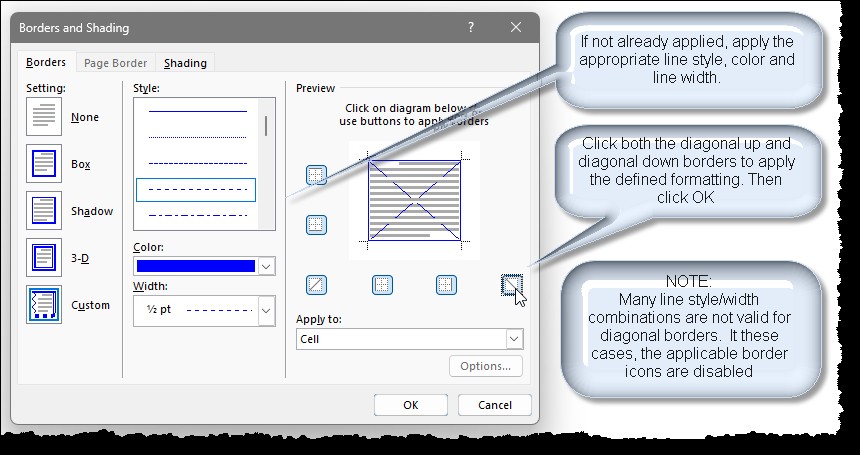
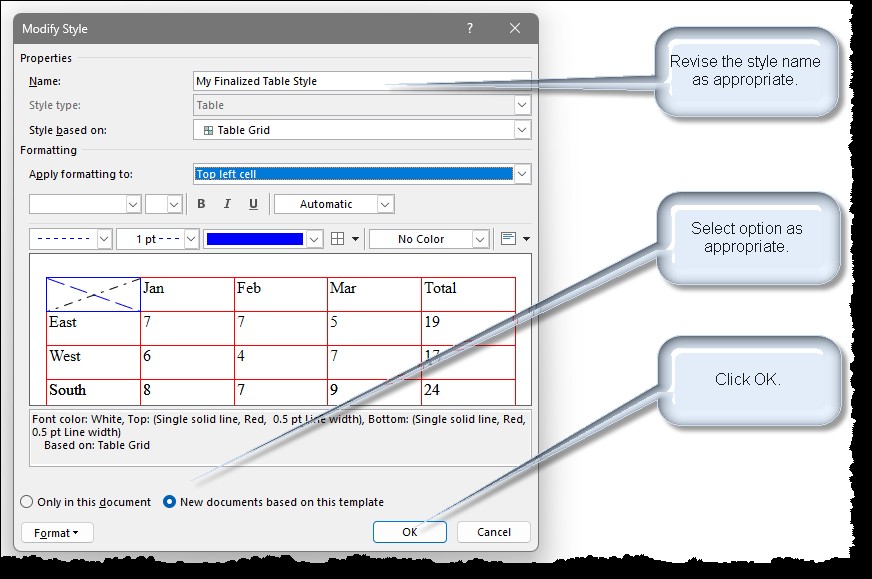
That's it. Your fully developed table style is now displayed in the gallery and ready to use.
 See: Installing Macros for instructions on how to set up and use the macros provided in this Microsoft Word Help & Microsoft Word Tips page.
Note: This tips page, illustrations and examples were developed using Word 2019.
That's it! I hope you have found this tips page useful and informative.
The information, illustrations and code contained in my "Microsoft Word Tips" are provided free and without risk or obligation.
However, the work is mine. If you use it for commercial purposes or benefit from my efforts through income earned or time saved then a donation, however small, will help to ensure the continued availability of this resource.
If you would like to donate, please use the appropriate donate button to access PayPal. Thank you!
This page was last updated on
June 20, 2026
Website
Privacy Statement
Back to top  Back to
Word Tips
Back to
Word Tips